
Register new tenants in 2 minutes with automatic ID scanning
Learn how to register new tenants quickly using automatic ID scanning. Compare 3 methods: automatic scan, manual entry, and spreadsheet to find the most efficient approach.
Every time a new tenant moves in, the same ritual repeats: ask for ID, take a photo, then type everything one by one—name, ID number, address, date of birth. This supposedly simple process can take 10-15 minutes per tenant, not including the risk of typos.
With OCR (Optical Character Recognition) technology, this entire process can be cut down to just 2 minutes. No manual typing, no risk of getting ID numbers wrong, and data is stored neatly right away.
In this article, you’ll learn 3 methods for processing tenant identity data, complete with a comparison of pros and cons for each. Let’s get started.
Why fast ID processing matters
Before we discuss methods, let’s understand why efficiency in processing tenant data significantly impacts your rental business.
Time is money
If you manage 20 rooms with an average turnover of 4 new tenants per month, and each registration takes 15 minutes for manual data entry, that’s 1 hour per month just typing ID data. In a year, 12 hours of work wasted on something that could be done in minutes.
Reducing input errors
ID numbers consist of many digits. Addresses are often long with confusing abbreviations. A single digit error can cause problems during verification or reporting. OCR eliminates this human error risk.
Better tenant experience
New tenants don’t want to wait long during check-in. A fast and professional process creates a positive first impression. They’ll feel your property is managed with modern efficiency.
Professional impression
Pulling out your smartphone and scanning an ID looks far more professional than writing in a notebook or slowly typing on your phone. Small details like this build tenant trust in you as a property manager.
Method 1: Using OCR/AI (Recommended)
The fastest and most accurate method is using an app with built-in OCR features. Kamaru has an ID scan feature that can automatically extract data from National IDs, Driver’s Licenses, and Passports.
Why is this method best?
- Fast — Only takes 2 minutes from photo to saved data
- Accurate — AI reads directly from the card, minimizing typos
- Integrated — Data goes directly into tenant profile
- Multi-document — Supports National ID, Driver’s License, and Passport
Steps to use OCR in Kamaru
Step 1: Open the add tenant page
From the property or room you want to fill, tap the “Tambah Penyewa” (Add Tenant) button. You’ll see the new tenant registration form.
Step 2: Fill in lease information first
Before scanning, fill in the lease details:
- Check-in Date — When the tenant starts living there
- Rental Price — Auto-filled from room price, can be adjusted
- Payment Period — Daily, weekly, monthly, or yearly
Step 3: Scan the tenant’s ID
Tap the “Scan ID” button and point the camera at the tenant’s ID. Make sure:
- The entire card is visible in the frame
- Lighting is adequate (not too dark or glaring)
- The card isn’t folded or covered by fingers
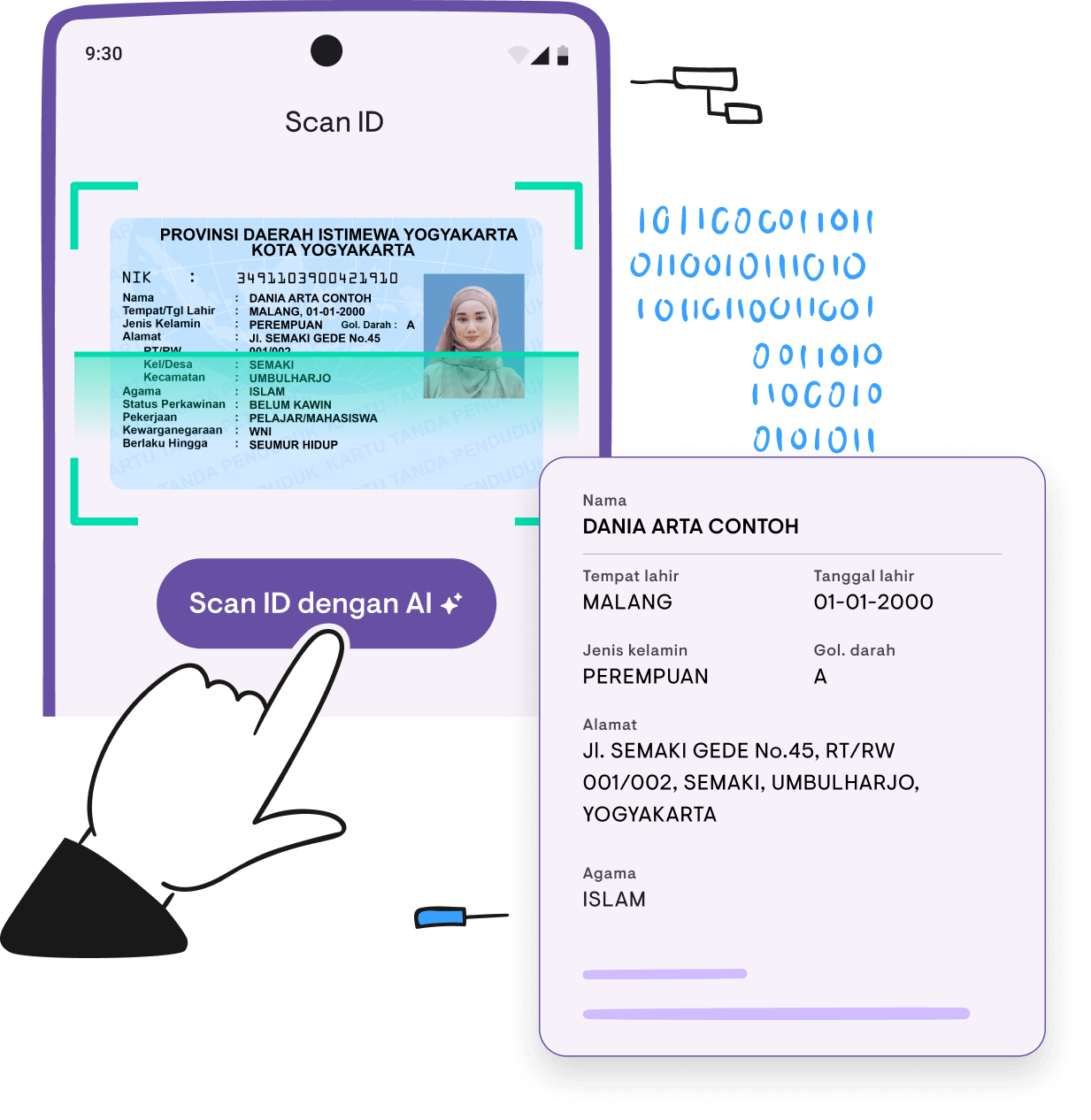
Step 4: Wait for AI to process
Within seconds, the AI will extract the following data:
- Full name
- ID number
- Gender
- Place and date of birth
- Full address
- And other available fields
After a successful scan, the app will display the extracted data for you to review.
Step 5: Review and save
Important: AI isn’t perfect and can misread data. Always check the scan results before saving—especially ID numbers and addresses that often have similar-looking characters. If anything needs correction, you can edit directly in the form. Once everything is correct, tap “Simpan” (Save).
Done. All tenant data is now saved complete with the ID photo as proof.
Supported documents
Kamaru doesn’t only support National IDs. You can also scan:
- National ID Cards — Government-issued identity cards
- Driver’s Licenses — All classes
- Passports — Domestic and international
This is very useful if your tenants are international students, expatriates, or locals who don’t have a local ID yet.
Pros of OCR method
- Process takes only 2 minutes
- High accuracy for good quality documents
- Data directly integrated with the system
- ID photo stored as proof
- Supports various document types
Cons of OCR method
- Requires internet connection
- Results depend on photo quality
- Damaged or faded IDs may need manual input
Want to try ID scanning now? Download Kamaru free and experience how fast registering new tenants can be.
Method 2: Manual input in app
If OCR isn’t available or the ID isn’t in ideal condition to scan, you can input data manually.
When to use this method?
- ID is damaged, faded, or lamination is peeling
- Tenant only has a photocopy
- Internet connection is unstable
- Want to fill data without physical document (e.g., from chat)
Manual input steps
- Tap “Ketik sendiri” (Type manually) on the add tenant page
- Fill in data one by one:
- Full name (required)
- Phone number
- Email (optional)
- Gender
- Nationality
- ID type and number
- Address
- Expand “Informasi Detail” (Detailed Information) for additional fields:
- Place of birth, date of birth
- Blood type, occupation
- Religion, marital status
- Tap “Simpan” (Save)
Pros of manual method
- Doesn’t need internet connection (for input)
- Can be used for damaged IDs
- Flexible for various situations
Cons of manual method
- Takes 10-15 minutes
- High risk of typos
- ID photo needs to be uploaded separately
- Tiring if many tenants
Method 3: Spreadsheet/Excel
The traditional method still widely used is recording tenant data in spreadsheets like Excel or Google Sheets.
When to use this method?
- Not yet using property management app
- Want backup data in familiar format
- Need to share data with business partners
Spreadsheet template setup
Create a spreadsheet with these columns:
| Name | ID Number | Gender | Date of Birth | Address | Phone | Room | Move-in Date | Rent Price |
You can add columns as needed, such as move-out date, deposit, or special notes.
Steps
- Open spreadsheet template
- Look at tenant’s ID
- Type data one by one into appropriate columns
- Save ID photo in separate folder
- Name photo file according to tenant name
Pros of spreadsheet method
- Free (Google Sheets)
- Familiar to most people
- Easy to export and share
- Can be accessed from laptop
Cons of spreadsheet method
- Slowest (15-20 minutes per tenant)
- Photos stored separately from data
- No input validation (easy to typo)
- Hard to access from phone
- No automatic backup (except Google Sheets)
- Data can get messy over time
Comparison of 3 methods
| Criteria | OCR (Kamaru) | Manual in App | Spreadsheet |
|---|---|---|---|
| Time per tenant | 2 minutes | 10-15 minutes | 15-20 minutes |
| Accuracy | High | Medium | Low |
| Photo storage | Automatically integrated | Manual upload | Separate folder |
| Phone access | Yes | Yes | Limited |
| Data backup | Automatic cloud | Automatic cloud | Manual/Google |
| Cost | Free | Free | Free |
| Learning curve | Easy | Easy | Easy |
Recommendation: Use OCR for normal conditions. Fall back to manual if ID has issues. Avoid spreadsheet unless for backup or specific needs.
Tips for best OCR results
OCR quality heavily depends on photo quality. Here are tips for optimal results:
Adequate lighting
- Use natural light if possible
- Avoid shadows covering the card
- Don’t use direct flash (can cause glare)
Proper card positioning
- Place ID on a flat surface
- Make sure entire card fits in camera frame
- Keep card parallel to camera (not tilted)
Card condition
- Card isn’t folded or wavy
- Make sure no dirt or stains cover the text
- For old faded IDs, try increasing lighting
Camera quality
- Use rear camera (usually better than front camera)
- Clean camera lens from fingerprints or dust
- Hold phone steady, avoid movement when capturing
Documents other than National ID
Not all tenants have a National ID. Some common situations:
Students from other cities
Students who just moved may not have processed a local ID yet. They can use:
- Original ID from hometown
- Driver’s License (if they have one)
- Passport (for international students)
Expatriates and foreigners
Foreign tenants typically use:
- Passport with valid visa
- Residence permits
Tips for non-National ID documents
When scanning Driver’s License or Passport, the extracted data may differ from National ID. Review carefully and complete fields that aren’t automatically filled.
FAQ
Can the OCR feature be used offline?
No. OCR requires internet connection because processing is done on servers with AI. However, you can still input data manually without internet.
What if OCR misreads data?
You can always edit scan results before saving. If there are errors, correct them directly in the form before tapping “Save”. Already saved data can also be edited anytime.
Is my ID photo safe?
ID data security is our top priority. Kamaru stores all data in the cloud with high security standards:
- AES-256 encryption — All data is encrypted, both when stored and when transferred
- Limited access — Only you can access your tenant data, no one else
- Not sold to third parties — Your data remains yours, never shared for commercial purposes
For full details, read our ID scan guide.
What documents are supported?
Kamaru supports:
- National ID Cards
- Driver’s Licenses (all classes)
- Domestic and international Passports
How much does OCR feature cost?
The OCR feature is available free in Kamaru. No additional charge for ID scanning.
Can I scan ID from an existing photo?
Yes. Besides capturing directly, you can also select an ID photo from your phone gallery to scan.
Conclusion
Processing tenant ID data doesn’t have to take long. With OCR technology, work that usually takes 15 minutes can be done in 2 minutes—with higher accuracy and no typo risk.
Of the 3 methods discussed, OCR is clearly the best choice for most situations. Manual input is still useful as backup, while spreadsheet should only be used if there’s a specific need.
Ready to process tenant IDs faster? Try Kamaru free today. With automatic ID scanning, you can register new tenants in minutes, not hours.
Related articles
Have questions or feedback? We'd love to hear from you. Email us.

Start managing for free today
Join other landlords who are already using Kamaru to manage their properties.

