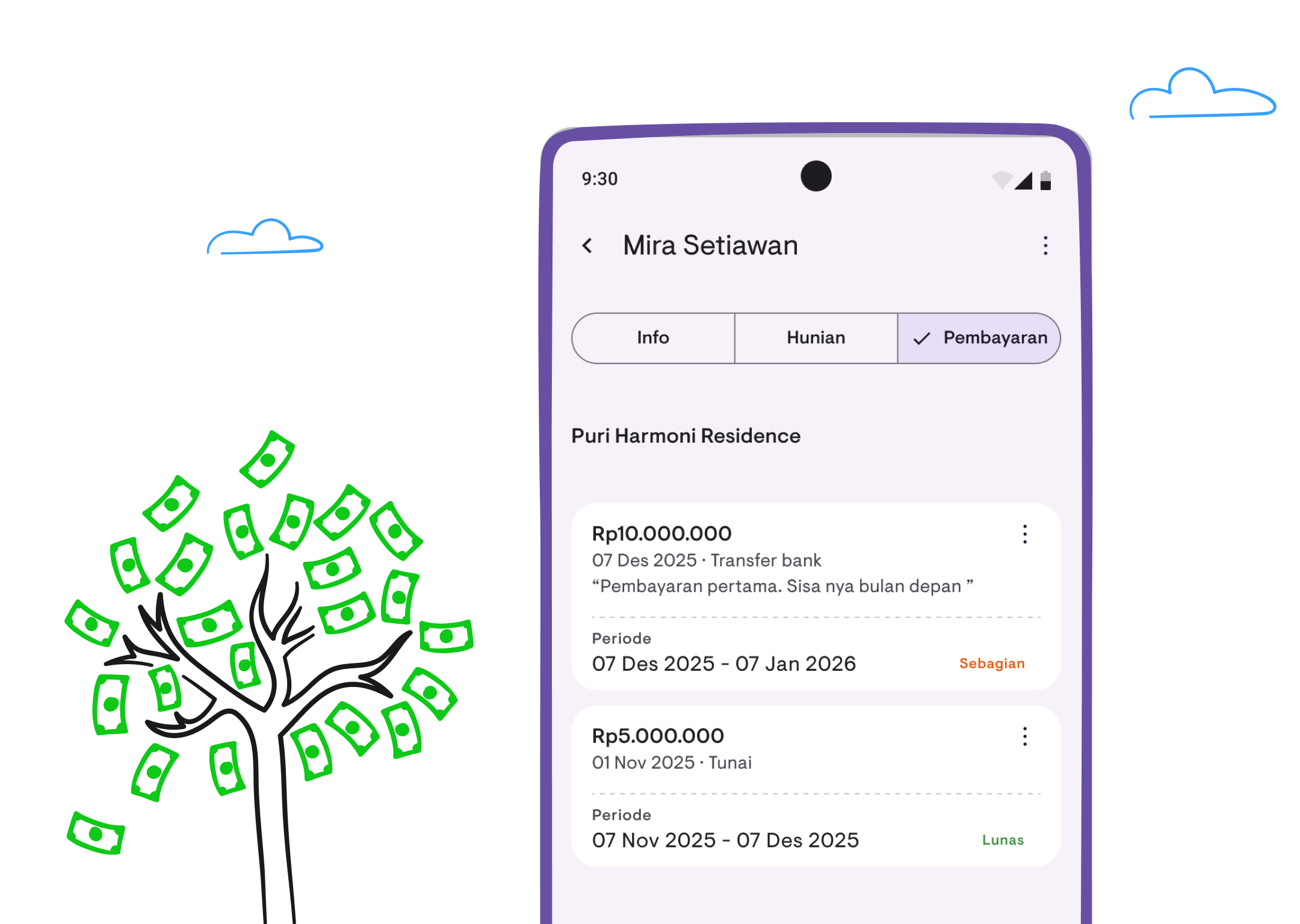
Payment tracking: complete user guide
Learn how to record payments, understand payment status, configure late status, and track payment history in this step-by-step guide.
Payment tracking helps you record and monitor rental payments from tenants. This guide will show you how to use this feature effectively.
Understanding payment status
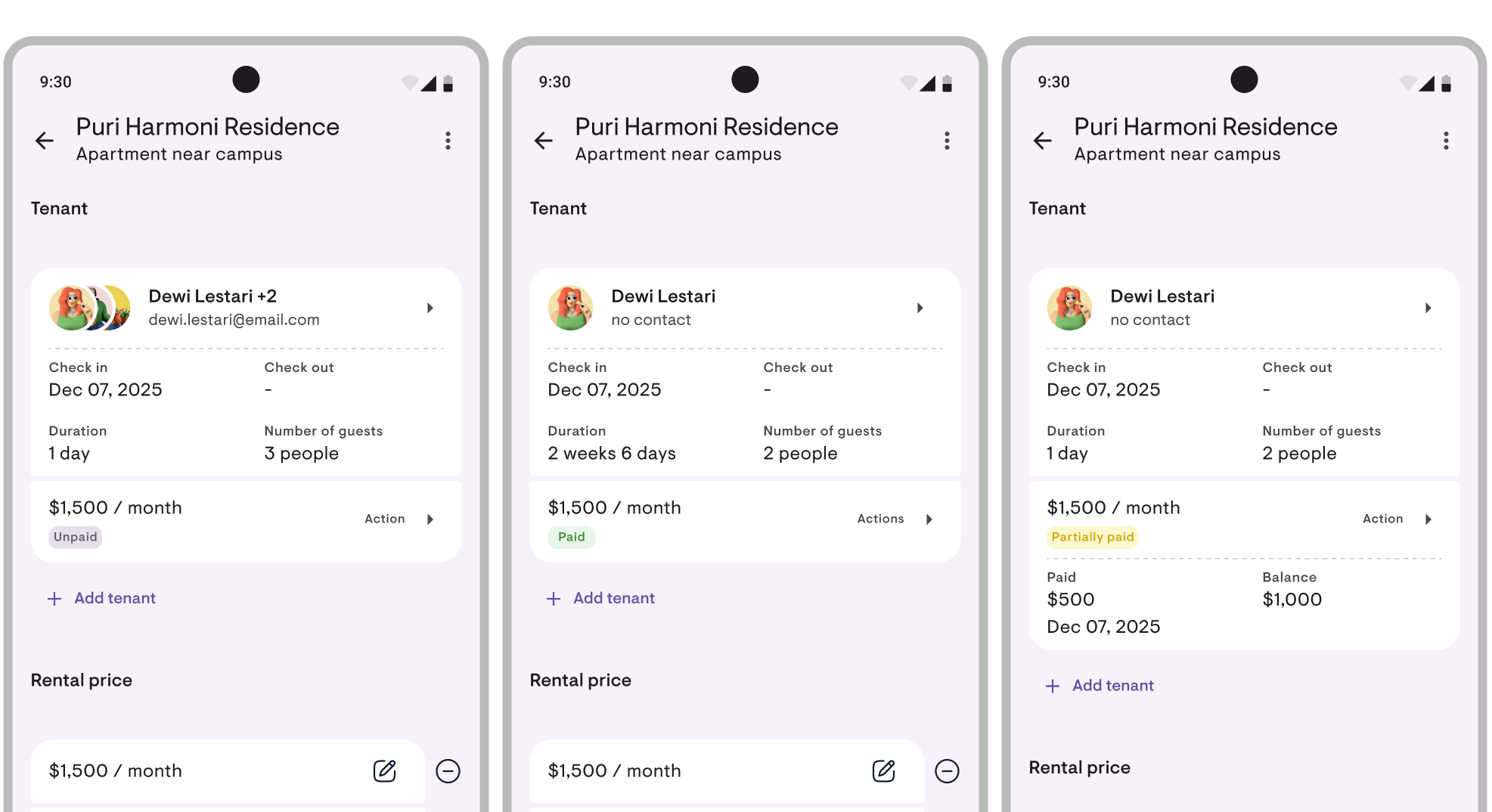
Kamaru displays payment status with color-coded badges:
- Unpaid (gray) — No payment recorded yet
- Partial (yellow) — Some payment made but not fully paid
- Paid (green) — Payment complete for the current period. Once the next period begins, the status automatically flips back to “Unpaid” — no manual reset needed
- Late (red) — Payment past the grace period (tolerance window after due date). Can be turned off entirely if you’d rather skip “Late” labels — see Late status below
These badges appear in the property list, tenant cards, and lease details.
Adding a new payment
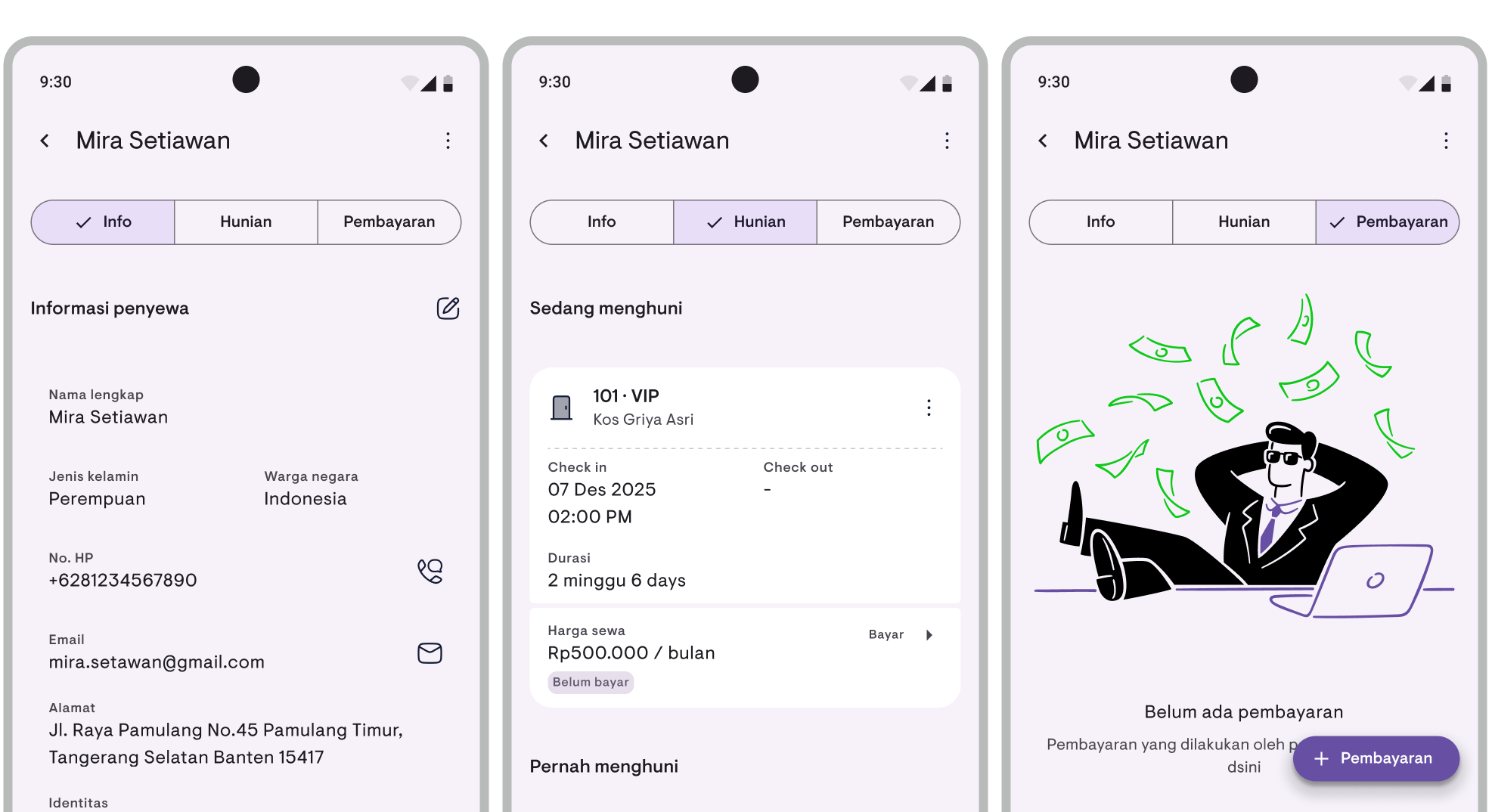
From the tenant detail page
- Open the tenant detail page
- Find the lease you want to record payment for
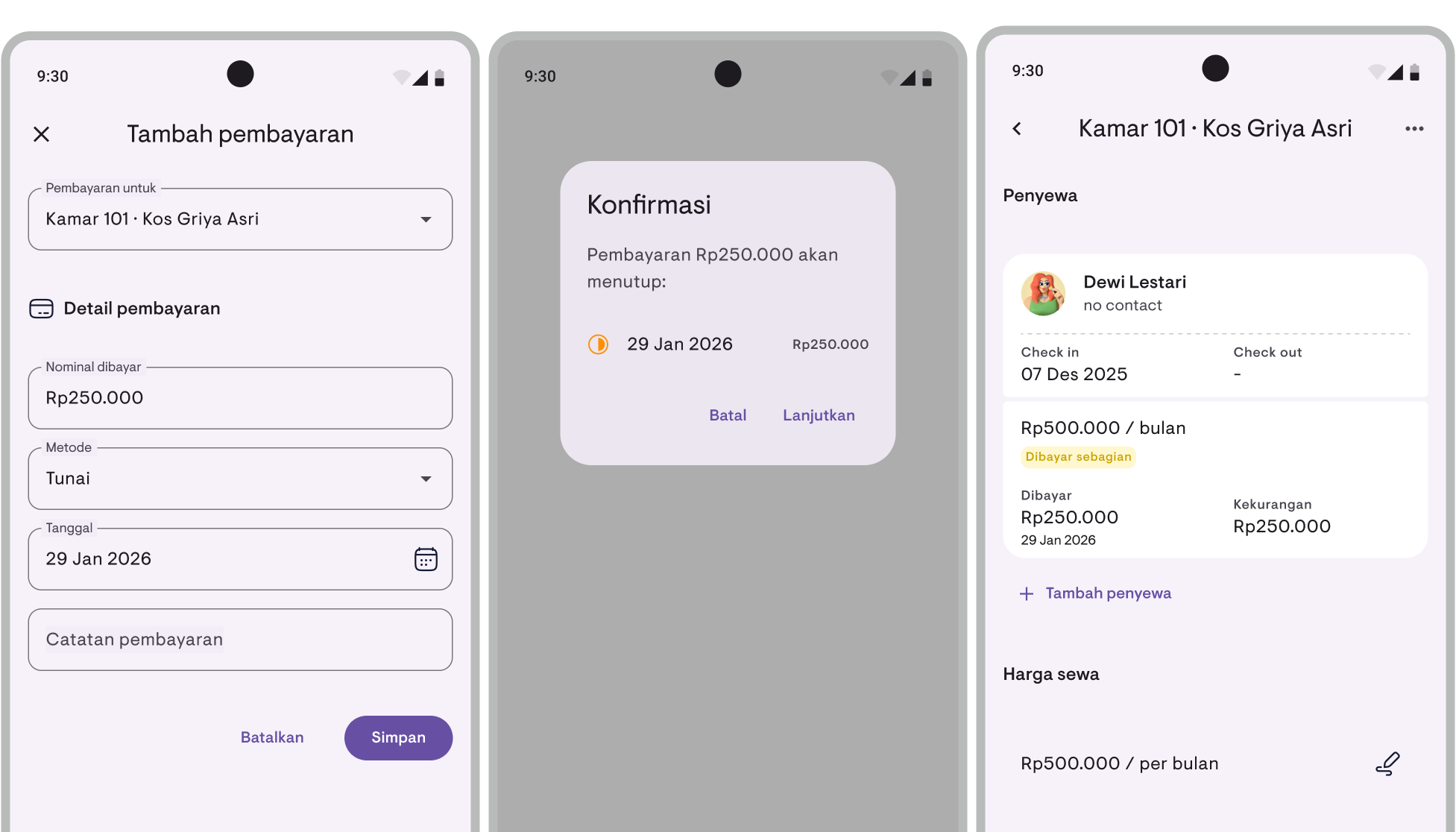
- Tap the Pay button on the lease card
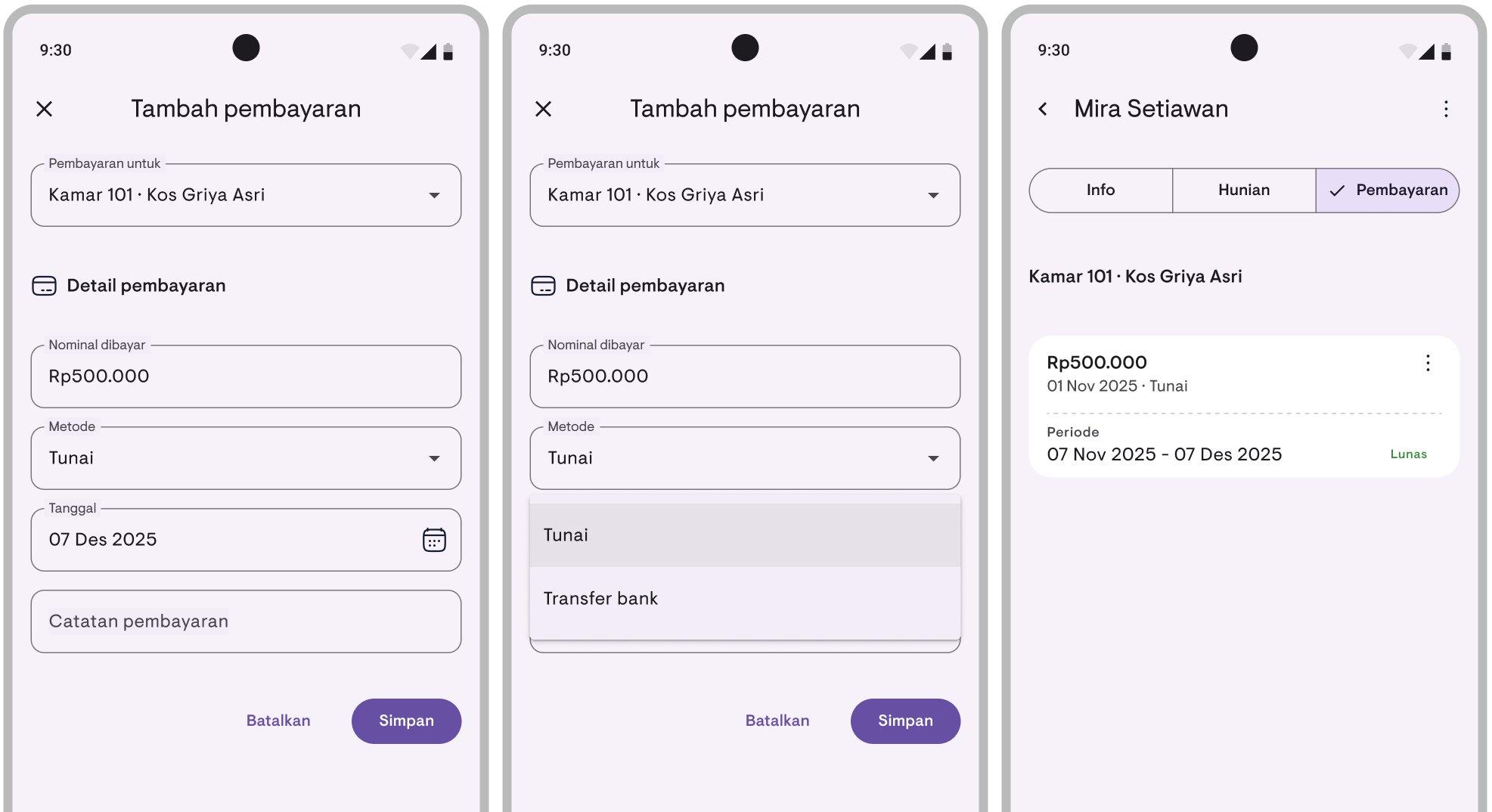
- Enter the payment amount
- Select the payment method (Cash or Transfer)
- Select the payment date (default: today)
- Add notes if needed (optional)
- Tap Save
From the occupancy calendar
- Tap the lease bar on the calendar
- Select Pay from the menu
- Follow steps 4-8 above
Confirming covered periods
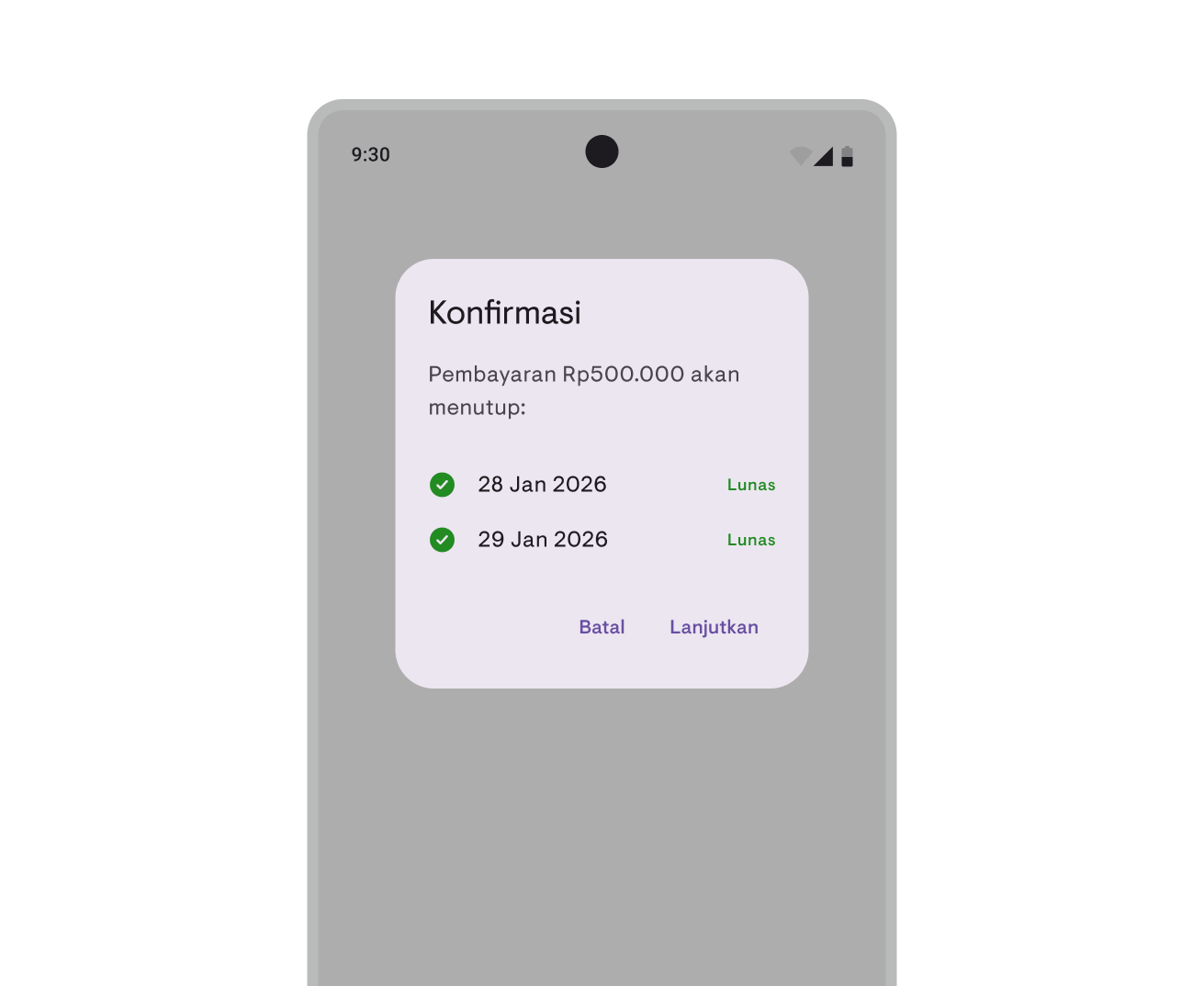
Before saving a payment, Kamaru displays a confirmation dialog showing:
- The payment amount to be recorded
- List of periods that will be covered by this payment
- Full/partial icons for each period
This helps you verify the payment is allocated correctly before confirming.
Viewing payment history
- Open the tenant detail page
- Tap the desired lease
- Scroll to the Payments section
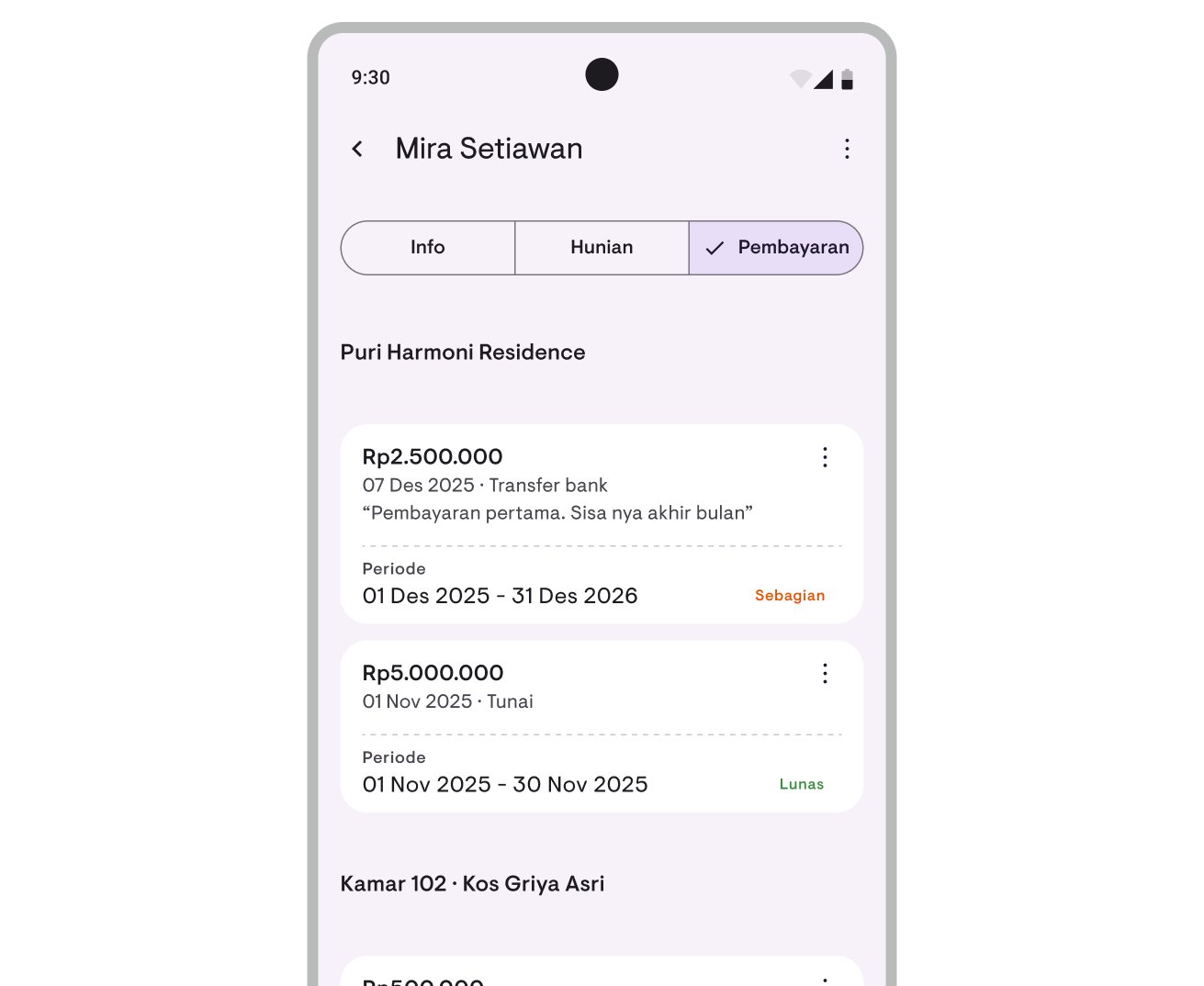
Here you can see all recorded payments, including:
- Payment amount
- Payment date
- Payment method (Cash/Transfer)
- Notes (if any)
Editing a payment
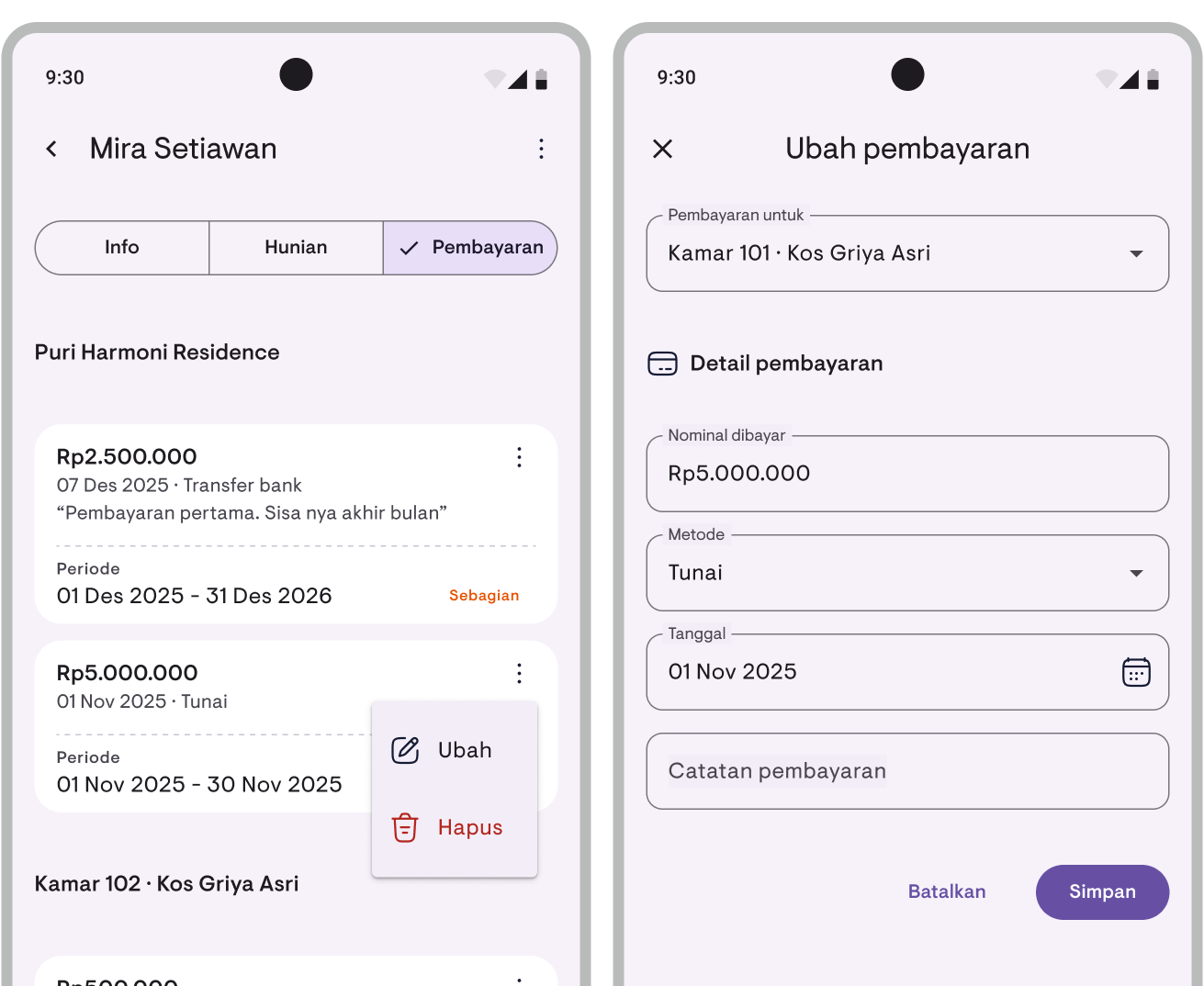
- Find the payment in payment history
- Tap the three-dot menu on the right side of the payment
- Select Edit
- Modify the details as needed
- Tap Save
Deleting a payment
- Find the payment in payment history
- Tap the three-dot menu on the right side of the payment
- Select Delete
- Confirm the deletion
The lease payment status will be automatically updated after deletion.
Payment settings
Late status
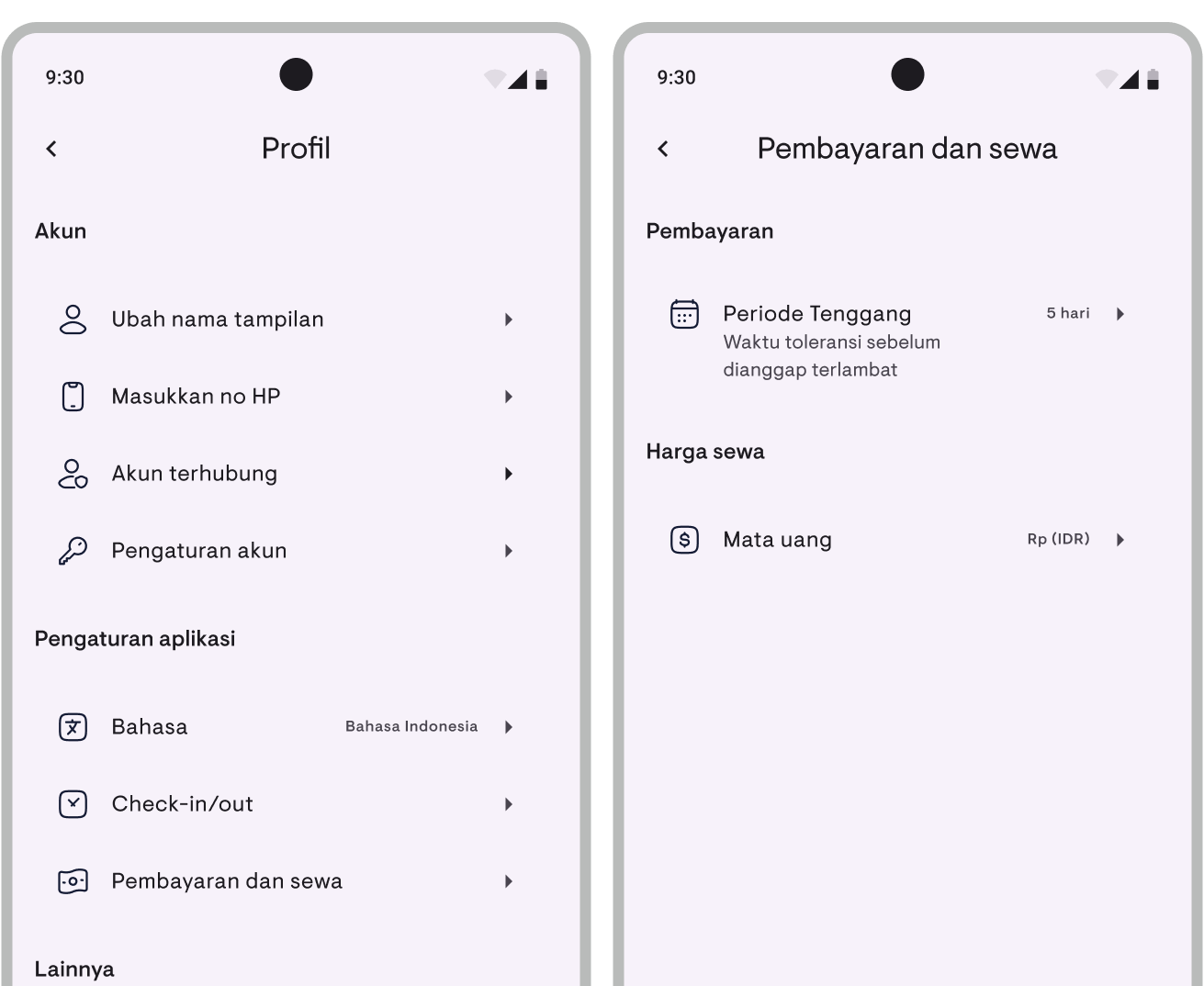
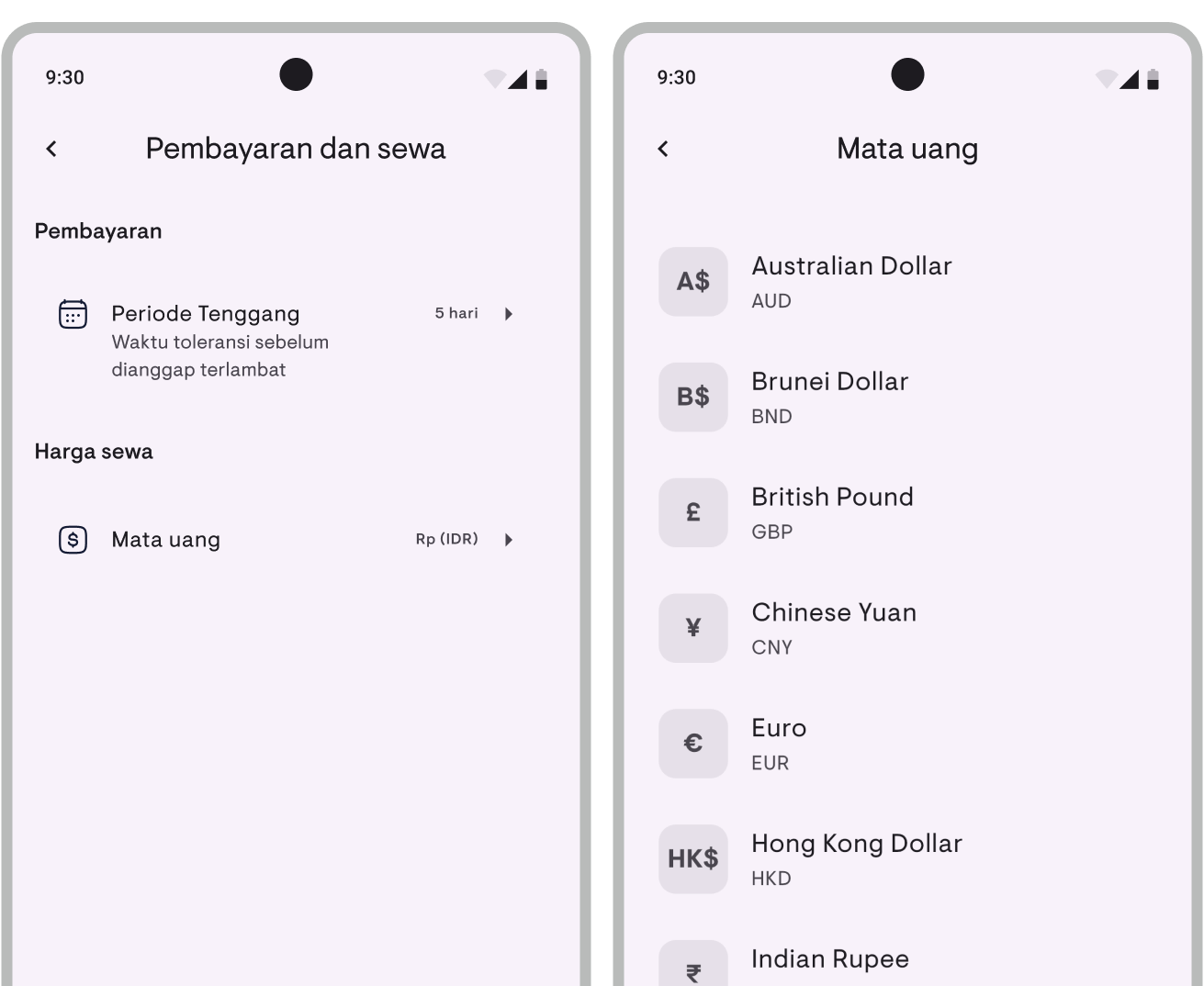
This setting controls how long after the due date before a payment is considered late. You can also turn it off entirely if you don’t want any “Late” labels at all.
- Go to Profile > Settings > Finance
- Tap Late status
- Use the toggle to turn the feature on or off
- When on, enter the grace period value (e.g., 5) and select the unit (Days or Weeks)
- Tap Save
When off, no lease will flip to “Late” — they stay as “Unpaid” / “Partial” / “Paid”. Late payment notifications also stop.
Currency
You can change the currency displayed in the app.
- Go to Profile > Settings > Finance
- Tap Currency
- Select your preferred currency
- The currency will be applied immediately
Kamaru supports 16 currencies including IDR, USD, SGD, MYR, EUR, and more.
Partial payments
If a tenant pays less than the full amount:
- Record the payment with the received amount
- Status will automatically change to Partial
- The lease card will display:
- Paid — Total amount paid so far
- Remaining — Amount still owed
You can add more payments at any time until fully paid.
Advance payments
If a tenant pays for multiple periods at once:
- Enter the total payment amount
- The confirmation dialog will show all periods covered
- Confirm to save
Kamaru will automatically allocate the payment to those periods in order.
Tips
- The Pay button only appears for leases with unpaid, partial, or late status
- Check badges in property list to quickly see which ones need follow-up
- Use notes to record transfer references or other important information
- Default grace period is 5 days — adjust according to your policy, or turn off Late status entirely if you don’t need it
See also: Payment Tracking feature announcement
Have questions or feedback? We'd love to hear from you. Email us.

Start managing for free today
Join other landlords who are already using Kamaru to manage their properties.

