Occupancy calendar: complete user guide
Learn how to navigate the occupancy calendar, filter properties, add new leases, and view tenant details in this step-by-step guide.
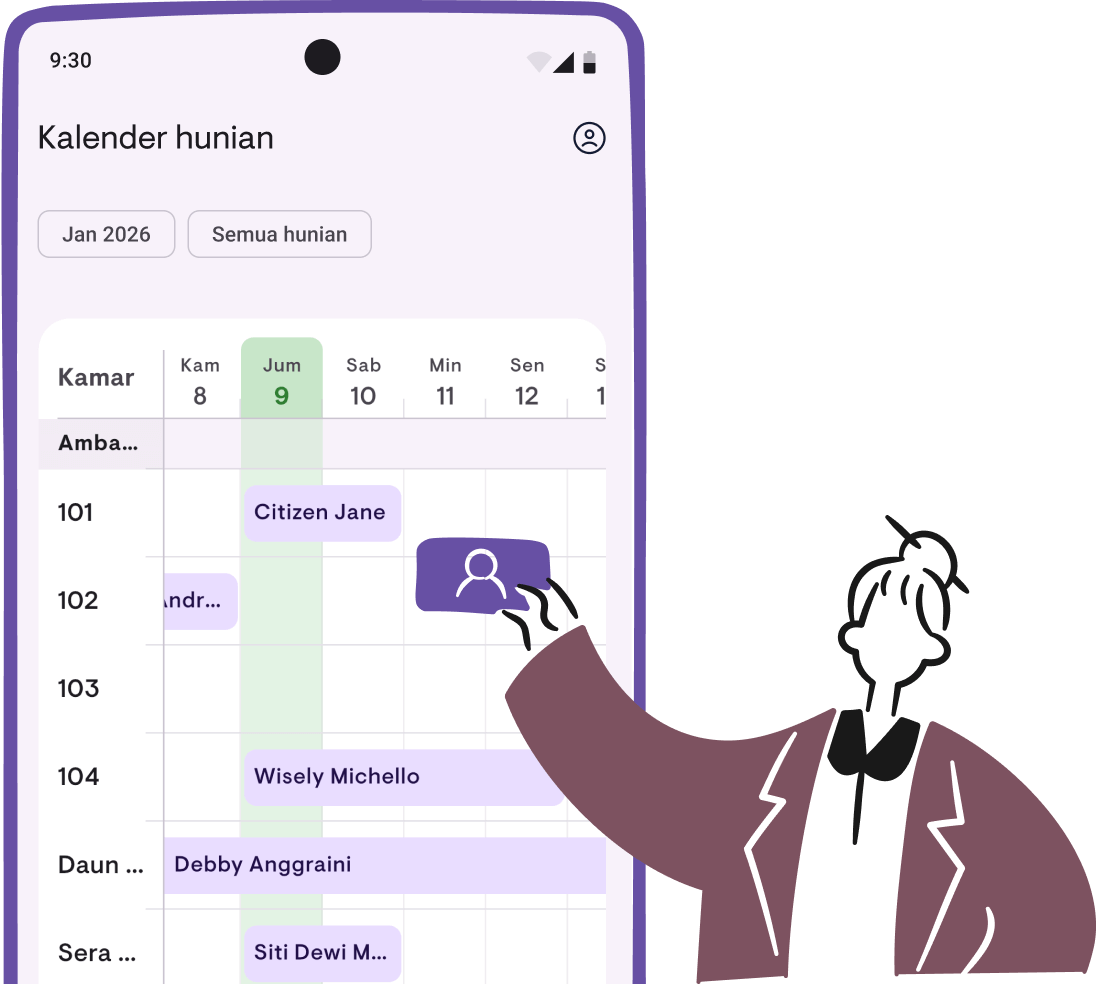
The occupancy calendar helps you visualize tenant schedules across all your properties. This guide will show you how to navigate and use the calendar effectively.
Accessing the calendar
Tap the Calendar icon in the bottom navigation bar to open the occupancy calendar.
Understanding the layout
The calendar displays a horizontal timeline with:
- Left column — Property and room names
- Top row — Dates with day-of-week labels (Mon, Tue, Wed, Thu, Fri, Sat, Sun)
- Timeline bars — Active leases showing tenant names
- Green highlight — Today’s date
Month labels (JAN, FEB, MAR, etc.) appear on the first day of each month to help you orient yourself.
Switching the view mode
The calendar supports three view modes, depending on what you want to see:
- Daily (default) — Each column = 1 day. Best for short stays, day-use, or airbnb-style rentals.
- Weekly — Each column = 1 week (anchored to Monday). Fits 2–3 months on one screen, useful for monthly rentals.
- Monthly — Each column = 1 month. For yearly or multi-year leases — see your entire portfolio end-to-end.
To change the mode:
- Tap the View mode icon in the filter bar (next to the property/room filter chip)
- Pick a mode from the bottom sheet
- Your choice is saved automatically — it persists across app launches
Lease bars stay proportional to actual dates in all modes. Tap-to-add-lease snaps to the period: Weekly mode lands on Monday of that week, Monthly on day 1 of that month.
Navigating the timeline
- Scroll horizontally to move through dates
- Scroll vertically to see more properties and rooms
- Tap the month/year header to open the month picker
- Tap “Today” in the month picker to jump back to the current date
The calendar loads more months automatically as you scroll, so you can explore past and future dates freely.
Filtering properties and rooms
Use the filter chips at the top of the screen:
- Tap “All properties” to filter by a specific property
- Tap “All rooms” to filter by a specific room (only available for per-room rental properties)
This is useful when you want to focus on a single property or room instead of viewing everything at once.
Adding a new lease
- Scroll to the date you want the lease to start
- Tap on the date cell for the desired property or room
- Select “Add lease” from the menu
- Fill in the tenant and lease details
Viewing tenant details
- Find the lease bar on the timeline (shows the tenant’s name)
- Tap the lease bar
- Select “View tenant” from the menu
Viewing property or room details
- Tap the property or room name in the left column
- Select “View property” or “View room” from the menu
Tips
- Arrows on lease bars indicate the lease extends beyond the visible timeline—scroll to see more
- Empty calendar? Add properties and tenants first, then lease schedules will appear automatically
- Fast navigation: Use the month picker when jumping between distant dates
Have questions or feedback? We'd love to hear from you. Email us.

Start managing for free today
Join other landlords who are already using Kamaru to manage their properties.

